How to test your webcam online
A webcam test takes a few seconds: press Start webcam test, choose Allow when your browser asks, and look at the preview. A moving picture of you means the camera, its driver, and your privacy settings all work. The verdict at the top says so in plain words, and Advanced under the preview shows the resolution and frame rate.
Press Start webcam test
Nothing to install. Keep the microphone box ticked if you also want to check your mic.
Choose Allow
Your browser asks for the camera (and the mic, if ticked). You can remove that permission later in the browser's site settings.
Check the preview and the verdict
Look for a sharp, well-lit picture. Open Advanced to compare the measured frame rate with the reported one.
Pick another camera if needed
The Camera list shows every camera your browser can see, including an external webcam plugged in after you start.
Done? Press Stop webcam test. The page stops every video track, which releases the camera so your browser and computer can turn off the camera light. If the mic box is ticked, Stop ends the mic test too.
What the webcam readouts mean
The readouts come straight from what your browser reports about the live camera stream, plus one number this page measures itself: how many frames per second actually arrive. Comparing the measured frame rate with the reported one is the quickest way to spot a camera that is struggling.
| Readout | What it means | What to look for |
|---|---|---|
| Resolution | The width and height of the picture in pixels, for example 1280 x 720 or 1920 x 1080. | The test asks for up to 1920 x 1080 (Full HD), so a 4K webcam shows 1920 x 1080 here. A lower number means that is the most your camera or connection offers. |
| Megapixels | Width times height, in millions of pixels. 1920 x 1080 is about 2.1 MP; 1280 x 720 is about 0.9 MP. | More pixels means more detail, but only if there is enough light. |
| Measured frame rate | Frames that actually reached this page in the last second, counted live. | Close to the reported rate is good. Much lower means dim light, a busy computer, or a slow USB connection. Some browsers cannot count frames and show "Not measurable here". |
| Reported frame rate | The frame rate the browser says the camera is set to, often 30 fps. | This is the target, not a guarantee. The measured number is the truth. |
| Facing | Front (user) for a selfie camera, Back for a phone's rear camera. | Shown under Advanced only when the camera reports it. Most desktop webcams do not, which is normal. |
Resolution, frame rate, and facing are read from the browser's MediaTrackSettings for the camera stream.
Is the webcam test private?
Yes. The preview is drawn directly from your camera onto this screen. The page does not record video, take photos, or upload frames anywhere. The numbers are worked out on your device, and pressing Stop or closing the tab releases the camera.
The preview is mirrored by default, so moving left moves left, like a bathroom mirror. Untick Mirror the preview to see the unflipped picture. That toggle only changes what you see on this page.
Your computer also tells you when the camera is on. On a Mac, Apple says a green light beside the camera glows while it is in use and turns off when you quit every app that can use it. On an iPhone, a green dot appears at the top of the screen whenever an app uses the camera.
Webcam not working? Fix it by symptom
When the preview stays black or the test shows an error, the cause is almost always one of four things: a privacy setting blocking the browser, a physical shutter or camera switch, another app holding the camera, or a loose USB connection. The test shows browser-specific steps; these cover the rest.
1. Camera blocked by Windows 11
Windows has its own camera switches that sit above your browser's permission. Go to Settings > Privacy & security > Camera and turn on:
- Camera access. If it is grayed out, an administrator has to turn it on.
- Let apps access your camera.
- Let desktop apps access your camera. Browsers count as desktop apps, so this one matters most for an online test.
Microsoft suggests trying the built-in Camera app next. If the camera works there but not in your browser, the problem is the browser's own site permission, not the hardware.
2. Camera blocked on a Mac
Open Apple menu > System Settings > Privacy & Security > Camera and switch on the browser you are using. The list only shows apps that have asked for the camera. In Safari, also check Safari > Settings > Websites > Camera and set this site to Ask or Allow.
3. Camera in use by another app
On many PCs only one app can use the camera at a time. Microsoft lists error 0xA00F4243 with the cause "another app or process is using the camera". The browser equivalent is the test saying the camera is busy.
- Close Zoom, Teams, Skype, OBS, the Camera app, and any other browser tab that has a call open.
- Still busy? Open Task Manager and end any app you recognize as a video app.
- Press Start webcam test again.
4. Black preview: shutter, switch, or camera key
Microsoft notes that some laptops have a physical switch or button that turns the camera off, a camera key on the keyboard (sometimes used with Fn), or a small shutter slider built into the camera. HP says select notebook models have a webcam privacy switch or a webcam shutter key. A closed shutter gives a black picture even though the test reports a working camera, so slide it open or press the key and look again.
5. External webcam not found
Make sure it is firmly plugged in, then try a different USB port, as Microsoft recommends. Once it is connected, it appears in the Camera list without reloading the page.
Sources: Microsoft, Camera doesn't work in Windows; Apple, Control access to your camera on Mac; HP, webcam privacy switch support.
Webcam blurry, dark, grainy, or laggy? What actually helps
Most bad webcam pictures are a lighting problem, not a broken camera. Logitech's own support advice for fuzzy or grainy images starts with adding light, because cameras need light to produce a good image. Fix the light first, then the lens, then your connection, before you think about buying a new webcam.
Dark or grainy picture
Put the light in front of you, behind the webcam, not behind you. Logitech recommends exactly that. A window or lamp behind you makes the camera expose for the bright background and leaves your face dark. Grain is a low-light symptom too: Logitech's first fix for a fuzzy or grainy image is more light.
A desk lamp or a window facing you is often enough. If your webcam software has a low light compensation setting, it brightens the picture but can lower the frame rate.
Blurry or soft picture
Microsoft lists a dirty or damaged lens, low camera resolution, and network problems during calls as the usual causes of blurry video. Clean the lens gently first, since a smudge softens everything. Then check distance: Logitech says fixed-focus webcams need you to sit at an adequate distance, and a manual-focus webcam has a focus ring around the lens. Better light also reduces the smearing you see when you move.
Choppy or laggy video
Look at the measured frame rate. If it is well below the reported rate here, the problem is local: dim light (many webcams slow down to gather more light), a computer under heavy load, or the USB connection. Add light, close apps you are not using, and try another USB port.
If the frame rate looks fine here but the video stutters in your call, the network is the bottleneck. Logitech notes that wireless connections can make video choppy and that what others receive depends on your connection. A wired connection, pausing big downloads, or a lower video quality setting in your call app trades some sharpness for smoother motion.
Still a low resolution?
If the test reports 1280 x 720 or less in good light, that is likely the camera's limit. A 1080p external webcam is the upgrade that changes the picture, while an expensive 4K model mostly helps if you also improve the light.
Sources: Logitech, Improving the image quality for Logitech webcams and C922 frame rate and lighting tips.
Three webcams worth the upgrade
If the test shows 1280 x 720 or less in good light, or your picture stays grainy after you add light, an external webcam is the upgrade. Our test asks for Full HD, so even a 4K webcam reads 1920 x 1080 here. Price bands: $ is under $60, $$ is $60 to $160, $$$ is over $160.
As an Amazon Associate, we earn from qualifying purchases.
-
Budget 1080p
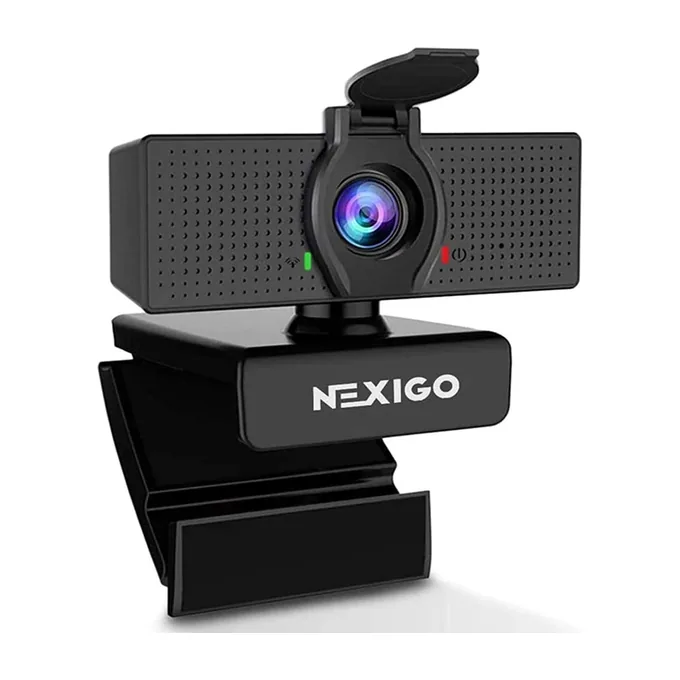
Image: NexiGo
NexiGo N60
Full HD at 30 fps with a wide 110° view, a built-in mic, and a privacy cover in the box.
- 1080p, 30 fps
- 110° view
-
4K on a budget
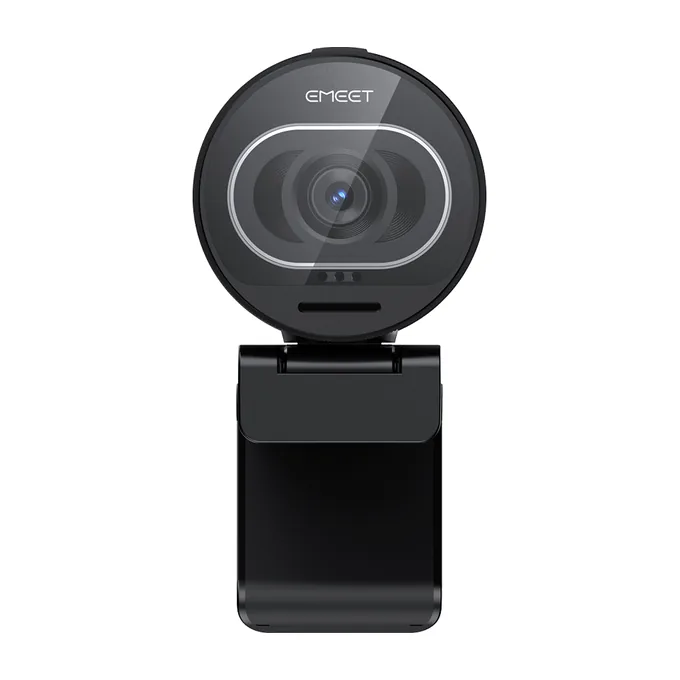
Image: EMEET
EMEET SmartCam S600
4K at 30 fps or 1080p at 60 fps, with fast autofocus, two noise-canceling mics, and a built-in privacy cover.
- 4K, 30 fps
- 1080p, 60 fps
- Autofocus
-
Better in dim light
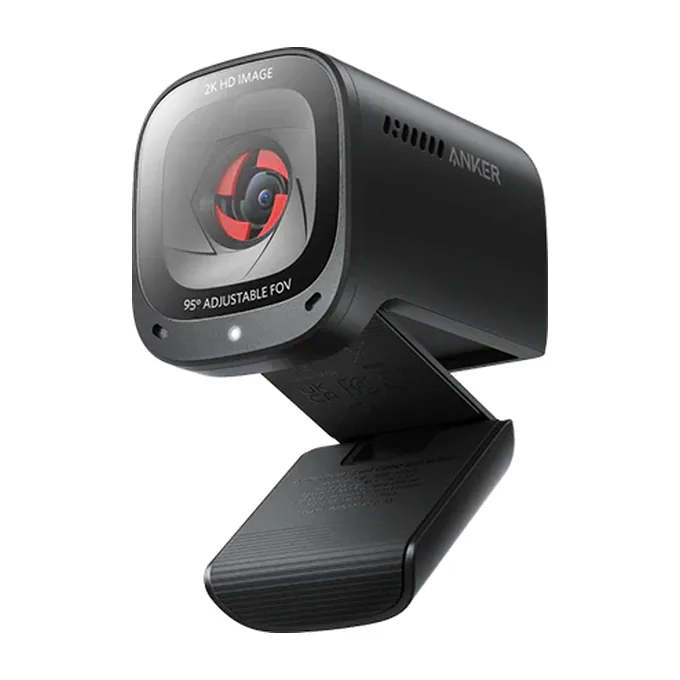
Image: Anker
Anker PowerConf C200
2K video that Anker says stays crisp in dim rooms without extra lighting, two AI noise-canceling mics, and a privacy cover.
- 2K
- Adjustable view
- Privacy cover
Specs from the makers: NexiGo N60, EMEET SmartCam S600, and Anker PowerConf C200. We chose these from published specs and did not test them ourselves.
Check the rest of your call setup
A working camera is only part of a good call. Make sure people can hear you and that you can hear them. Each of these runs in the browser the same way, with nothing to install and nothing uploaded.
Mic test
Level meter, verdict, and a 10-second playback clip.
Sound test
Left, right, and both-channel tones for speakers and headphones.
Headset mic test
Tips for wired, USB, and Bluetooth headsets.
Laptop mic not working
Mute keys and privacy settings on laptops.
Webcam test questions
How can I tell if my webcam is on right now?
Look for the camera light. Many webcams have an indicator light next to the lens, and on a Mac a green light glows beside the camera whenever it is in use. On an iPhone, a green dot at the top of the screen means an app is using the camera.
Could my webcam be spying on me?
An app or site can only use the camera after you grant access, so review that access if you are worried. On Windows check Settings, Privacy and security, Camera; on a Mac check System Settings, Privacy and Security, Camera; and remove sites you do not recognize in your browser's site settings. A physical shutter or camera switch, if your laptop has one, blocks the lens completely.
Can anyone else see my camera preview on this page?
No. The preview goes from your camera straight to your screen. MicChecker does not record it, take snapshots, or send any video to a server.
Why does my browser ask before showing my camera?
Browsers only hand a page the camera after you choose Allow, and only on secure https pages. That prompt is the protection working. If you blocked it by mistake, open the site settings from the icon next to the web address and set Camera to Allow.
Is a webcam an input or an output device?
A webcam is an input device. It sends video into your computer, the same way a microphone sends in sound, while speakers and monitors are output devices. Many webcams also have a built-in microphone, which is a second input.
Why does the test say 1920 x 1080 when my webcam is 4K?
The test asks your camera for up to Full HD (1920 x 1080), so a 4K webcam reports 1080p here. A result below that means your camera or its connection cannot deliver Full HD right now.
Why is my measured frame rate lower than the reported frame rate?
The reported number is the camera's setting, while the measured number counts the frames that actually arrive. A big gap usually means the room is too dark and the camera is slowing down to gather light, or your computer or USB connection is overloaded.
Why is there no Facing readout for my webcam?
Most desktop and laptop webcams do not tell the browser which way they face, so the test only shows Facing when the camera reports it. Phones usually do, so you will see Front (user) for the selfie camera and Back for the rear camera. It has no effect on whether the camera works.
Can I test my webcam and microphone together?
Yes. Leave Also test my microphone ticked before pressing Start webcam test, and the mic meter below the video starts at the same time. Allow both the camera and the microphone when your browser asks.
Does the webcam test work on a phone or tablet?
Yes, in Safari on iPhone and iPad or in Chrome on Android. After you allow access, the Camera list usually lets you switch between the front and rear cameras, and the mirror toggle switches off automatically for a rear camera.
Why does my camera work in the Camera app but not in my browser?
That means the hardware is fine and the browser is being blocked. On Windows 11, turn on Let desktop apps access your camera under Privacy and security, Camera, then check the browser's own site permission for this page.