Headset Mic Test: Check Your Headset Microphone
Connect your headset, press Start, and pick it in the Mic list.
- Runs in your browser
- Nothing uploaded
- No sign-up
Step 1: Start
Press Start, then choose Allow when your browser asks.
Step 2: Talk
Your result shows here
Say a few words after you start. You get a plain answer in seconds.
Step 3: Hear yourself
Record up to 10 seconds and play it back. This is what your call hears. The clip stays in this tab.
Try saying: Peter picked six silver spoons from the sink.
Advanced
Press Start first. The numbers, spectrum, and checks fill in once the mic is on.
- Level
- -- dBFS
- Peak (session)
- -- dBFS
- Noise floor
- -- dBFS
- Clips
- 0
- Sample rate
- -- kHz
- Channels
- --
Talk for a few seconds to get input volume advice.
Plays your mic through your speakers or headphones as you talk.
Use headphones to avoid feedback. Speakers will squeal.
Stay silent for 3 seconds, then talk for 7. You get a grade for background noise, speech level, clipping, and clarity.
Your last two recordings stay here, labeled with the mic and processing used, so you can switch mics or settings and compare.
- Record a clip to start comparing.
dBFS means decibels relative to full scale: 0 dBFS is the loudest level digital audio can hold, so every reading is negative. Noise floor is the level of your quietest moments over the last few seconds. Changing a processing option restarts the mic; the value on the right is what your browser reports it applied.
Plug in or connect your headset, press Start mic test, and allow access. Then choose your headset in the Mic list, because computers often keep listening to the built-in mic. Speak, read the verdict, and record a clip to hear what others hear.
Plugged the headset in after starting? It appears in the Mic list without a reload. Want to check the headphone side as well? Play the left and right tones on the sound test.
How to test a headset microphone
Testing a headset mic takes four steps: connect the headset, start the test, select the headset as the input, and speak with the mic in its normal position. The verdict tells you whether sound gets through at a healthy level, and a recorded clip tells you how clear it is.
Connect the headset
Plug in the cable or USB plug, or connect over Bluetooth. Check that any mute switch or button on the headset or its cable is off.
Start and allow access
Press Start mic test and choose Allow. Browsers hide device names until you allow access, which is why the list fills in only after this step.
Pick the headset in the Mic list
The test restarts on the device you choose. The panel's top line shows the name of the mic being tested.
Speak, then play a clip back
Talk as you would in a game or call. Record up to 10 seconds and play it through the headset to hear your own mic.
Only one microphone listed? The computer does not see the headset mic at all. For a 3.5 mm headset on a PC with two separate jacks, that is usually a plug-type mismatch, covered below. For Bluetooth, the headset may be connected for listening only.
Wired, USB, and Bluetooth headsets
How a headset connects decides what can go wrong. A 3.5 mm headset depends on the right plug and jack. A USB headset brings its own sound hardware and shows up as its own device. A Bluetooth headset switches to a lower-quality call mode whenever its mic is in use.
3.5 mm wired headsets
These plug into a headphone jack. Logitech's guidance is simply to plug the audio jack into the matching port on your PC. A single combined jack usually takes a headset plug directly; a computer with two separate jacks needs a splitter (next section).
USB headsets
A USB headset plugs into a USB port, or into an adapter if the port does not match. It appears in the Mic list under its own name, separate from your computer's built-in audio. If the test does not show it, try another USB port.
Bluetooth headsets and earbuds
Bluetooth headphones use one profile (A2DP) for stereo playback. Using the mic switches them to a hands-free profile (HSP/HFP), and playback quality drops a lot. On Windows, a Bluetooth headset typically shows up twice: a stereo device for listening and a separate hands-free or headset entry that has the mic. Pick that entry in the test and in your call app, and expect a muffled, phone-like sound. AirPods have their own quirks; see AirPods mic not working.
Sources: Logitech: how microphones work and How-To Geek on Bluetooth headsets in Windows.
TRS vs TRRS: the plug that hides your mic
A headset with one 3.5 mm plug usually uses a TRRS plug, which has four contacts: left, right, ground, and an extra ring for the mic. A plain headphone plug is TRS, with three contacts and no mic. If the plug and jack don't match, you can hear sound but the mic does not work.
Look at the metal tip of the plug. Three black or plastic rings separating four metal sections means TRRS, a headset plug. Two rings means TRS, headphones only. Headsets with one plug and a built-in mic need that fourth contact.
- PC with separate headphone and mic jacks: a single TRRS plug can't carry the mic into those jacks directly. Logitech says you may need a Y-splitter (3.5 mm splitter cable) in this case. Get a 4-pole TRRS to stereo plus mic splitter, then plug its two ends into the matching jacks.
- Mixing TRS and TRRS: plugging one into the other generally still plays sound, but the mic won't work.
- CTIA vs OMTP: there are two wiring standards for the mic and ground contacts on TRRS plugs. CTIA is the common one for PC and iPhone headsets. An older headset wired the other way can need a CTIA/OMTP adapter.
Plug details from Cable Chick's guide to TRRS and audio jacks and Logitech.
What your headset test result means
Each verdict points to a different part of the headset. No sound usually means a mute control is on. Too quiet usually means the mic boom is out of position or the input volume is low. Clipping means the mic is too close or too hot. An error means the computer can't open the mic at all.
| Verdict | On a headset, this usually means | What to try |
|---|---|---|
| Your mic is working | The headset mic reaches the computer at a healthy level. | Record a clip to check clarity, then pick the same mic in your game or call app. |
| Too quiet | The boom is pointed away or pushed up, or the input volume is low. | Bring the boom near your mouth, then raise Input volume in your sound settings. |
| Too loud | The mic sits right in front of your mouth, or its input volume is too high. | Move the boom slightly to the side and lower the input volume. |
| No sound | A mute switch or button is on, or the plug type does not carry the mic. | Check every mute control, then the TRS vs TRRS section above. |
| Device busy | Another app is holding the headset mic. | Close other call or game apps and start the test again. |
Mute controls first. Logitech lists an accidentally pressed mute button on the mic or headset as a common cause of a silent mic, and Xbox tells headset users to check the mute switch first. Check any switch or button on the headset or along its cable, and any mute light.
Mic boom placement and level
A headset mic only sounds right when the boom sits close to your mouth and the input level leaves headroom. Use the live meter as you move the boom: aim for the green zone while speaking normally, without the verdict ever saying Too loud, then record a clip to check for breath noise.
- Bring the boom down toward the corner of your mouth rather than leaving it pushed up near your cheek.
- If the Clip light flashes on plosives such as P and B, move the boom slightly off to the side.
- If you need to raise or lower the level on Windows 11, open Settings > System > Sound, select your headset under Input, and adjust Input volume. On a Mac, use System Settings > Sound > Input.
- Open Advanced readouts to see the noise floor. A high noise floor on a headset often means a fan or keyboard is close to the mic.
Still silent on every device with all mute controls off? Check the cable for damage and try another port. Logitech notes the hardware itself may be broken if the mic still picks up nothing. The full checklist is in mic not working; console users should read Xbox mic not working, and Discord users Discord mic not working.
When to replace the headset mic
Replace the headset when the mic fails on every device with mute off, or when it works but sounds poor no matter how you place it. Another option is to keep the headset for listening and add a USB desk microphone, which also sidesteps the Bluetooth call-mode quality loss.
As an Amazon Associate, we earn from qualifying purchases.
Dynamic USB-C mic with tap-to-mute and a denoiser that runs on the mic itself. Good for voice in an ordinary room. No physical gain knob: set the level in Shure's MOTIV Mix app or use Auto Level.
Low-cost USB condenser mic with a volume knob and tripod. It has no mute button and no headphone jack, picks up more room noise than a dynamic mic, and FIFINE says it is not compatible with Xbox.
More picks, with honest limits for each, are on best USB microphones.
Three headsets with a clear mic
If your test keeps saying Too quiet or your clip sounds muffled with the boom in place, a new headset is the fix. Pick a wired USB or 3.5 mm model over Bluetooth for calls, since it avoids the hands-free mode that lowers quality. Price bands: $ is under $60, $$ is $60 to $160, $$$ is over $160.
-
Budget
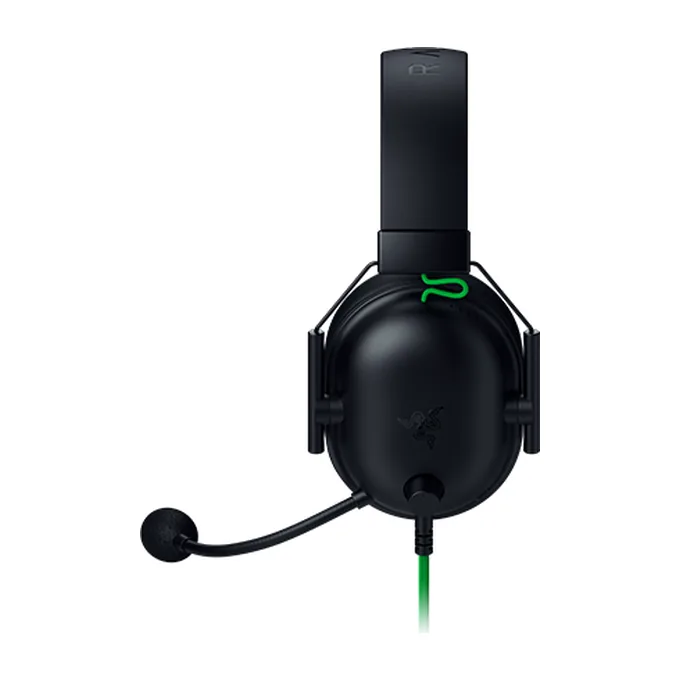
Image: Razer
Razer BlackShark V2 X
A cardioid mic on a bendable boom, and a 3.5 mm plug that works with PC, Mac, PlayStation, Xbox, and Switch.
- 3.5 mm
- Cardioid mic
-
Gaming
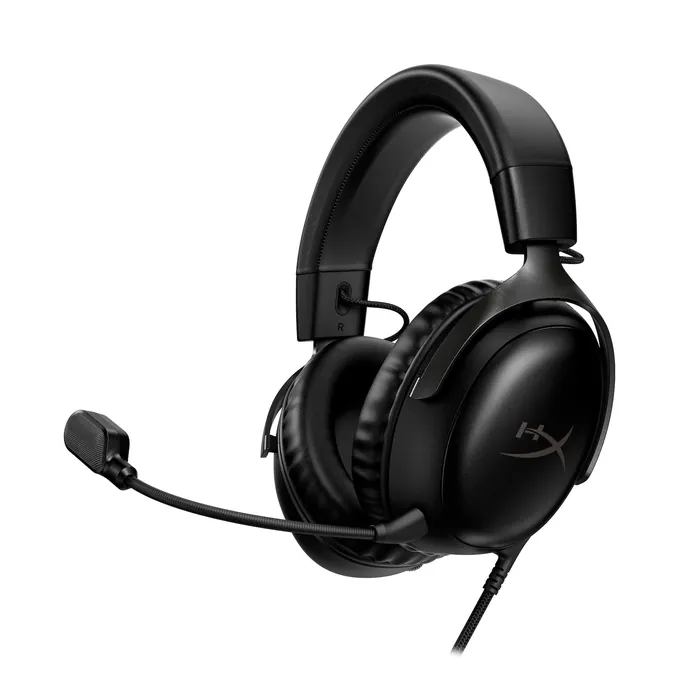
Image: HyperX
HyperX Cloud III
A detachable 10 mm noise-canceling mic with a mute LED, and one headset for PC, PlayStation, Xbox, and Switch.
- 3.5 mm, USB-C, USB-A
- Detachable mic
-
Clear mic for calls
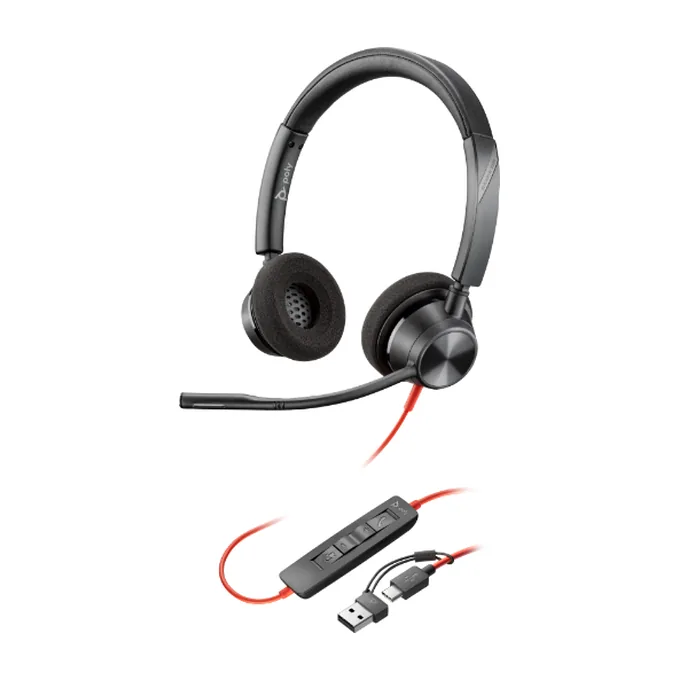
Image: Poly
Poly Blackwire 3320
A stereo office headset with a flexible noise-canceling mic boom and call controls on the cable, for Windows and Mac.
- USB-A
- Noise-canceling mic
- Stereo
Specs from the makers: Razer BlackShark V2 X, HyperX Cloud III, and Poly Blackwire 3300 series. We chose these from published specs and did not test them ourselves.
Headset mic test questions
How do I make sure the test uses my headset and not my laptop mic?
After you press Start and allow access, open the Mic list and choose the headset by name. The test restarts on it, and the headset's name appears at the top of the panel. If the headset is missing from the list, the computer is not detecting its mic.
Why does my headset mic work on my phone but not my PC?
Usually the PC has separate headphone and mic jacks, and a single four-contact TRRS headset plug can't carry the mic into them. A TRRS to stereo plus mic splitter fixes it. On a PC with one combined jack, check the input device and privacy settings instead.
What is the difference between a TRS and a TRRS plug?
TRS has three contacts for left, right, and ground, so it carries sound only. TRRS adds a fourth ring for the microphone. You can tell by counting the rings on the plug: two rings is TRS, three rings is TRRS.
Do I need a splitter for my headset?
You need one only if your headset has a single 3.5 mm plug and your computer has separate headphone and microphone jacks. Headsets with two plugs, USB headsets, and computers with one combined jack don't need one.
Why does my Bluetooth headset sound worse when I use the mic?
Using the mic switches Bluetooth from its stereo playback profile to a hands-free profile, which lowers sound quality a lot. That is a limit of Bluetooth calls, not a fault in your headset.
Why does my Bluetooth headset appear twice on Windows?
Windows typically lists one stereo device for listening and a separate hands-free or headset device that includes the mic. Choose the hands-free entry as your microphone in this test and in your call app.
Where should I position my headset's mic boom?
Bring it down near the corner of your mouth, slightly to the side so your breath doesn't hit it directly. Watch the meter while you adjust it: speech should land in the green zone without lighting the Clip indicator.
What do CTIA and OMTP mean on headset plugs?
They are two wiring standards for the microphone and ground contacts on four-contact plugs. CTIA is the common one for PC and iPhone headsets. A headset wired to the other standard may need a CTIA to OMTP adapter for its mic to work.
Can I test my headphones' speakers on the same site?
Yes. The sound test plays a tone in the left ear, the right ear, or both, so you can confirm each side of the headset works. Use it together with this mic test to check the whole headset.
How do I know if my headset mic is broken?
Turn off every mute control, check the cable, and test the headset on a second device. If the mic shows no sound everywhere, it is likely faulty. If it works on one device but not another, the problem is that device's jack or settings.